How to Fix Epson Printer Not Printing
An Epson printer not printing is a common issue that can be caused by connection problems, driver errors, clogged printheads, incorrect settings, outdated firmware, or software conflicts. Epson printers are designed for reliability, but like all devices, they require proper configuration and regular maintenance. Most printing problems can be fixed at home by following systematic troubleshooting steps without professional repair.
This in-depth guide explains how to fix Epson printer not printing issues on Windows, macOS, and wireless networks. It covers basic checks, advanced solutions, ink and printhead problems, driver fixes, and preventive maintenance.
1. Introduction: Why Epson Printers Stop Printing
When an Epson printer fails to print, it does not always mean the printer is broken. In many cases, the issue is related to software miscommunication, network interruptions, or incorrect printer settings. Because printers rely on multiple components working together—hardware, drivers, network connections, and operating systems—a failure in any one area can stop printing entirely.
Understanding the root cause is the key to restoring normal printer operation quickly and safely.
2. Common Reasons an Epson Printer Is Not Printing
Before applying fixes, it helps to understand what typically causes the problem:
-
Printer set to offline or paused
-
Incorrect printer selected as default
-
Empty, clogged, or unrecognized ink cartridges
-
Corrupt or outdated printer drivers
-
Wi-Fi or USB connection issues
-
Pending or stuck print jobs
-
Firewall or antivirus interference
-
Firmware compatibility issues
Each cause requires a different solution, which is why a step-by-step approach is recommended.
3. How to Fix Epson Printer Not Printing Basic Checks Before Troubleshooting Further
3.1 Confirm the Printer Is Powered On
Ensure the printer is turned on and shows no critical error lights. If the display is blank or flashing unexpectedly, restart the printer.
3.2 Check Paper and Ink Levels
-
Make sure paper is loaded correctly
-
Remove jammed or wrinkled paper
-
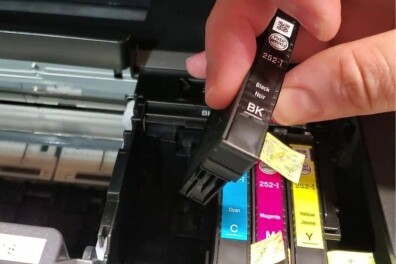
Confirm ink cartridges are installed and not empty
Low ink or paper issues can silently prevent printing.
4. Restart Printer, Computer, and Network
A simple restart often resolves temporary communication issues.
Steps:
-
Turn off the printer
-
Shut down your computer
-
Restart your Wi-Fi router (if using wireless)
-
Turn everything back on
This clears memory conflicts and refreshes network connections.
5. Ensure Epson Printer Is Set as Default
If multiple printers are installed, jobs may be sent to the wrong device.
On Windows:
-
Open Printers & Scanners
-
Select your Epson printer
-
Click Set as default
On macOS:
-
Open System Settings > Printers & Scanners
-
Set the Epson printer as default
6. Check If Epson Printer Is Offline or Paused
Windows:
-
Open Devices and Printers
-
Right-click your Epson printer
-
Uncheck Use Printer Offline
-
Ensure Pause Printing is disabled
macOS:
-
Remove and re-add the printer if it appears offline
7. Clear Stuck Print Jobs
A single corrupted print job can block all printing.
Steps:
-
Cancel all print jobs
-
Restart the printer spooler (Windows)
-
Restart the printer
After clearing the queue, send a new test print.
8. Check Connection Type (USB or Wi-Fi)
8.1 USB Connection Issues
-
Try a different USB port
-
Replace the USB cable
-
Avoid USB hubs
8.2 Wireless Connection Issues
-
Ensure printer and computer are on the same Wi-Fi network
-
Avoid guest networks
-
Move the printer closer to the router
9. Fix Epson Printer Not Printing Over Wi-Fi
Wireless printing failures are often network-related.
Steps:
-
Reconnect the printer to Wi-Fi
-
Reset network settings on the printer
-
Re-run wireless setup using Epson software
Stable Wi-Fi is essential for consistent printing.
10. Update or Reinstall Epson Printer Drivers
Outdated or corrupted drivers are a major cause of printing problems.
Steps:
-
Uninstall the existing Epson driver
-
Restart your computer
-
Download the latest driver for your model
-
Install and restart again
This refreshes printer communication with the system.
11. Update Epson Printer Firmware
Firmware updates fix bugs and improve compatibility.
Steps:
-
Open Epson printer software
-
Check for firmware updates
-
Install updates if available
-
Restart the printer
Outdated firmware can cause silent failures.
12. Run Epson Printer Utility and Troubleshooter
Epson provides built-in tools to diagnose issues.
Features include:
-
Nozzle check
-
Head cleaning
-
Connection diagnostics
Running these tools often resolves printing errors automatically.
13. Fix Epson Printer Printing Blank Pages
Blank pages usually indicate ink or printhead issues.
Solutions:
-
Perform printhead cleaning
-
Run nozzle check
-
Replace empty cartridges
-
Use genuine Epson ink
Multiple cleanings may be required for clogged nozzles.
14. Fix Epson Printer Not Printing Black or Color
Selective color failure is common.
Fixes:
-
Clean the affected printhead
-
Replace the specific ink cartridge
-
Disable “Print in Grayscale” if color is missing
-
Align the printhead
15. Check Epson Printer Settings
Incorrect settings can block output.
Verify:
-
Correct paper size selected
-
Matching print quality settings
-
Proper color mode
Mismatch between document and printer settings can stop printing.
16. Disable Antivirus or Firewall Temporarily
Security software may block printer communication.
Steps:
-
Temporarily disable antivirus/firewall
-
Test printing
-
Re-enable security tools
If printing works, whitelist the printer software.
17. Reset Epson Printer to Factory Settings
A reset clears configuration conflicts.
General reset steps:
-
Power off the printer
-
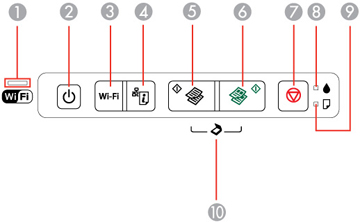
Hold Reset / Stop button
-
Power on while holding
-
Release when lights flash
Resetting removes network and custom settings.
18. Re-Add Epson Printer to the Computer
Removing and adding the printer refreshes system configuration.
Windows & macOS:
-
Remove printer from settings
-
Restart computer
-
Add printer again
19. Fix Epson Printer Not Printing from Specific Applications
If printing fails only from one app:
-
Restart the application
-
Update the app
-
Try printing from another program
This helps identify software-specific issues.
20. Check Operating System Updates
System updates can break driver compatibility.
Ensure:
-
Windows or macOS is fully updated
-
Epson drivers match OS version
21. Advanced Troubleshooting for Persistent Issues
For ongoing problems:
-
Assign a static IP address
-
Change Wi-Fi channel
-
Use Ethernet temporarily
-
Test printer on another device
These steps isolate hardware from software problems.
22. Preventing Future Epson Printing Problems
Best practices include:
-
Regular printhead cleaning
-
Keeping firmware updated
-
Using high-quality paper and ink
-
Printing periodically to prevent clogging
Preventive care improves long-term reliability.
23. How to Fix Epson Printer Not Printing: FAQ
Why is my Epson printer on but not printing?
Common causes include offline status, driver issues, or stuck print jobs.
Does reinstalling drivers fix Epson printing issues?
Yes, driver reinstallation resolves many communication problems.
Why does my Epson printer print blank pages?
Usually due to clogged printheads or empty cartridges.
Can Wi-Fi cause Epson printer not printing?
Yes, unstable or mismatched networks frequently cause issues.
24. When to Contact Epson Support
-
Hardware errors persist
-
Printer does not power on
-
Error codes remain after reset
-
Internal components fail
Professional service may be required for hardware faults.
An Epson printer not printing is usually caused by correctable issues such as connectivity problems, driver errors, ink blockages, or configuration conflicts. By following a structured troubleshooting process—from basic checks to advanced fixes—you can restore printing functionality in most cases without replacing the printer.
Similer Article:
How to Fix Canon Printer not working?
Fix HP Printer not Working
How do I speak to a live person at Dell?